A sports scoreboard on a spare TV
I wanted a screen in the house that just shows how my teams are doing: the standings, last weekend’s scores, what’s on right now, and the news. Without opening an app, and without the Bills getting lost among 31 other teams. So I built one, and then I kept fiddling with it.
It started on a cheap old mini PC with a spare TV, and now it runs off a spare video output on the always-on server in my basement. Both setups are below, and they’re the part of this you can use for any web page, not just scores.
One honest warning up front: the scores, standings and news come from ESPN’s public website feed. It’s free, but it’s unofficial and undocumented, and it may change or stop at any time. My board has been fine so far, and the kit is built to keep showing its last data and recover by itself if the feed hiccups, but nobody promises it’ll work forever.
What you’ll end up with
- Standings for each league you follow, by division or conference, with every team’s record and last result (“W 24-16 vs MIA”).
- Live scores while games are on, and a team’s row flashes gold when they score.
- A rotating news ticker, plus a separate band just for your favorite team’s stories.
- Your favorite teams highlighted in their own colors, with a slow glow, and their stories shown more often.
- Several leagues taking turns on the screen. Mine is NFL and NHL; the kit is tested with NFL, NBA, WNBA, MLB, NHL and MLS.
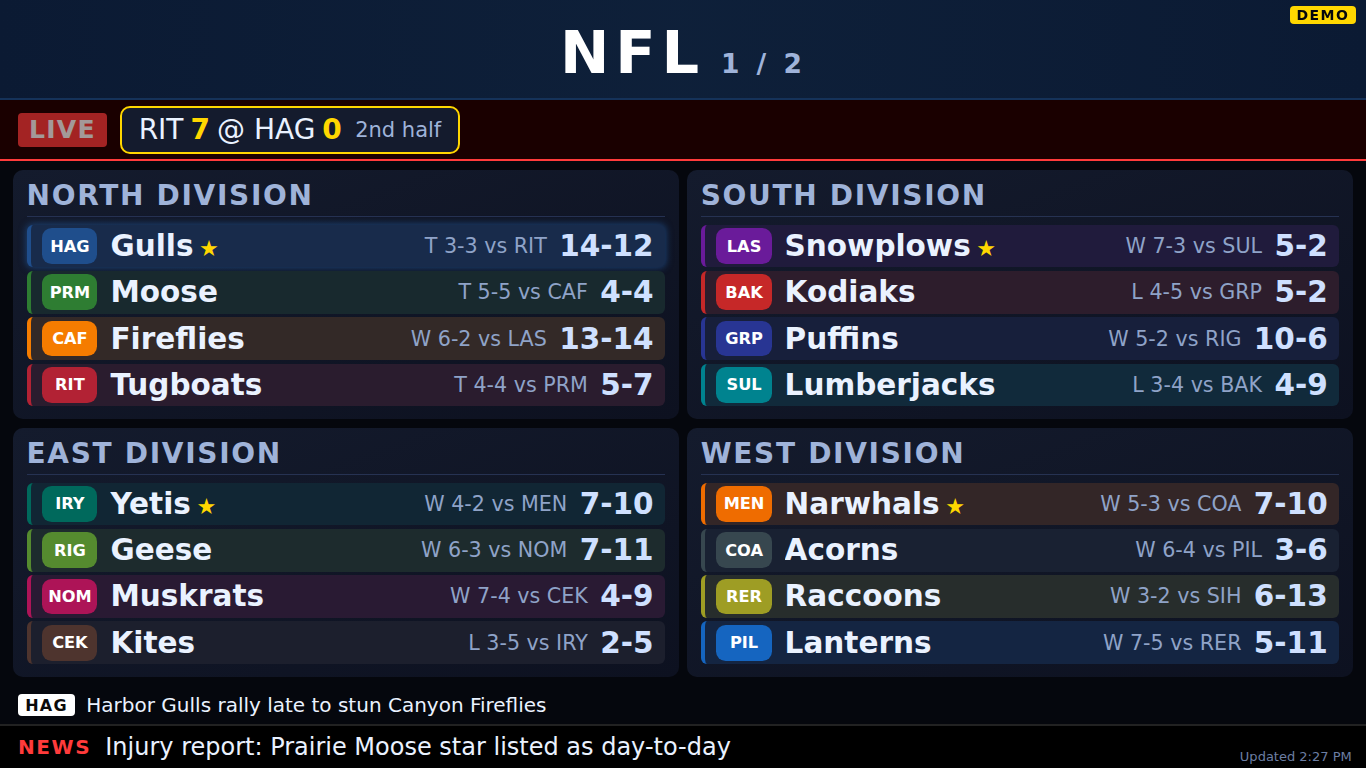
(That screenshot uses the kit’s demo mode, with made-up teams, so no real team logos appear here.)
What you need
| Thing | What I used | Rough cost |
|---|---|---|
| Something always on to run the board | My home server (any Linux box with Docker works) | $0 |
| A screen | A spare TV | $0 (spare) |
| Something to drive the screen | First a used Lenovo ThinkCentre mini PC; now a spare output on my server’s graphics card | $0 to $100 |
Steps
The board itself is in the kit. These steps are the free part: how to put any web page full screen on a spare TV and keep it there. They work for a Grafana dashboard, a Home Assistant panel or a family calendar just as well.
Route A: a cheap spare PC and a TV
A used business mini PC is perfect: small, quiet and cheap. Mine was a ThinkCentre with a slow dual-core Celeron, so I put Lubuntu on it, a lighter version of Ubuntu.
-
Log in automatically. Lubuntu uses a login screen called SDDM. Create its settings file with
sudo nano /etc/sddm.conf.d/autologin.confand put in:[Autologin]User=yourusernameSession=Lubuntu -
Install Chromium:
sudo snap install chromium. -
Open the page full screen at login. Create
~/.config/autostart/board.desktop:[Desktop Entry]Type=ApplicationName=BoardExec=sh -c 'xset s off -dpms; xset s noblank; /snap/bin/chromium --kiosk --noerrdialogs --disable-infobars --no-first-run "http://your-server:8096/"' -
Stop the screen blanking, both ways (see “Where I broke it” for why it takes two):
- Stop the screensaver program from starting: create
~/.config/autostart/lxqt-xscreensaver-autostart.desktopcontaining just[Desktop Entry]and, on the next line,Hidden=true. - Turn off the desktop’s own idle blanking: in
~/.config/lxqt/lxqt-powermanagement.conf, setenableIdlenessWatcher=false.
- Stop the screensaver program from starting: create
On Ubuntu with the normal GNOME desktop, the kit’s installer script does all of this in one go.
Route B: a spare output on a computer you already have
If your server, or any always-on PC, already drives a monitor, its graphics card probably has another HDMI or DisplayPort socket sitting unused. That can drive the TV, and you don’t need another computer at all.
-
Plug in the TV and set it as an extended screen (not mirrored) in your display settings. Note where it sits: if your main screen is 1920 pixels wide and the TV is to its right, the TV starts at 1920.
-
Start Chromium full screen at login, as in Route A, but add
--ozone-platform=x11right afterchromiumin theExec=line. On a modern Ubuntu desktop, that makes Chromium use the older window system, which is the only way the next step can move it. -
Put the window on the right screen. This is where it got fiddly (see below). On GNOME, the fix is a tiny tool called
wmctrl, which moves the window after it opens:Terminal window sudo apt install wmctrlwmctrl -r "Sports Ticker" -b remove,fullscreenwmctrl -r "Sports Ticker" -e 0,1920,0,-1,-1wmctrl -r "Sports Ticker" -b add,fullscreen"Sports Ticker"is part of the window’s title, which is the page’s title. The kit includes a script that does this automatically at every login, for any number of windows.
Where I broke it
As with everything on this site: Claude, the AI assistant I build with, wrote the code and did the digging when something went wrong. I decided what I wanted, and checked it on the actual screens.
The scores said “24.0-16.0”
The very first version showed scores with a decimal point, because ESPN’s feed sends them as decimal numbers. An easy fix once spotted, and a reminder that a feed nobody documents has surprises in it.
There’s no “Bills news” feed
I wanted a separate news line just for the Bills. ESPN’s feed has no per-team news, as Claude found after checking the obvious places. What it does have is a list of every team each story mentions. A story about one team (a game recap, an injury, a signing) tags that team and maybe one opponent, while a league-wide roundup tags most of the league. So the board counts: a story tagging four teams or fewer, including mine, is a “my team” story.
Hockey records work differently
When I added the NHL (for the Sabres), the records needed a third number, for overtime losses, and the standings are sorted by points rather than wins. The feed also spells one team’s abbreviation two different ways depending on which part of it you ask. And not long ago a team moved (Arizona to Utah), so the kit reads the divisions from the feed every time instead of having them typed in.
“Make it less dull”
Version one worked, but it was a plain list. I asked for something flashier: real team logos and colors, a glow on my teams, a star for each division leader, fades between pages, and NFL and NHL taking turns. Later came the live scoring flash, after I asked whether it could flash the team that scores while a game is on.
The screensaver kept coming back
On the Lubuntu mini PC, the screen kept going blank, even though the startup line already had xset s off -dpms, the usual way to turn blanking off. It turned out Lubuntu has two separate things that blank the screen: a screensaver program called xscreensaver, which ignores those settings once it’s running, and the desktop’s own power management. The fix was to stop both, by turning off the screensaver’s autostart (a small file containing Hidden=true) and switching off “idleness watcher” in the power settings.
The text didn’t fit the TV
My spare TV is a 32-inch that only does 1366×768, much shorter than the 1080-pixel screen I’d designed for. The NFL fit fine, but hockey divisions have eight teams each, and the bottom rows got cut off. The first fix was hand-tuned sizes for that one TV. The kit does it properly: each page shrinks its text until everything fits, on any screen.
Every window opened on the same screen
When I moved the board to a spare output on my server, the server was already driving two monitors with other dashboards, so three full-screen windows were all set to open on their own screens. Then I noticed the scoreboard was on the wrong screen. Claude checked where each window had actually opened: all three were stacked on the main screen, even though each was told exactly where to go. On this desktop, that “open here” option isn’t reliable at login. The fix is to move each window after it opens, which is what the wmctrl commands above do.
Want the full version?
The kit is the board itself, for $3, priced low because it depends on that unofficial feed:
- Your leagues, your teams: pick any of NFL, NBA, WNBA, MLB, NHL and MLS (or try another ESPN league), in your order, with a favorite team in each.
- Standings, last results, live scores with the scoring flash, news and your team’s own news band.
- Fits any screen, from a 1366×768 TV up, with big leagues split across pages.
- Keeps going when the feed misbehaves: it shows the last good data, says when it was updated and what went wrong, and recovers by itself.
- A demo mode with made-up teams, for trying it out with no internet.
- Runs in Docker, with the spare-PC installer and the window placer for spare outputs.
- A step-by-step setup guide (PDF too) and a printable checklist.
No team logos are included in the kit; the board loads them from ESPN while it runs.
Related
Want it ready to go? Sports Ticker Kit
A scoreboard for your leagues and your teams on any spare screen: standings, live scores and news.
$3
Coming soon